
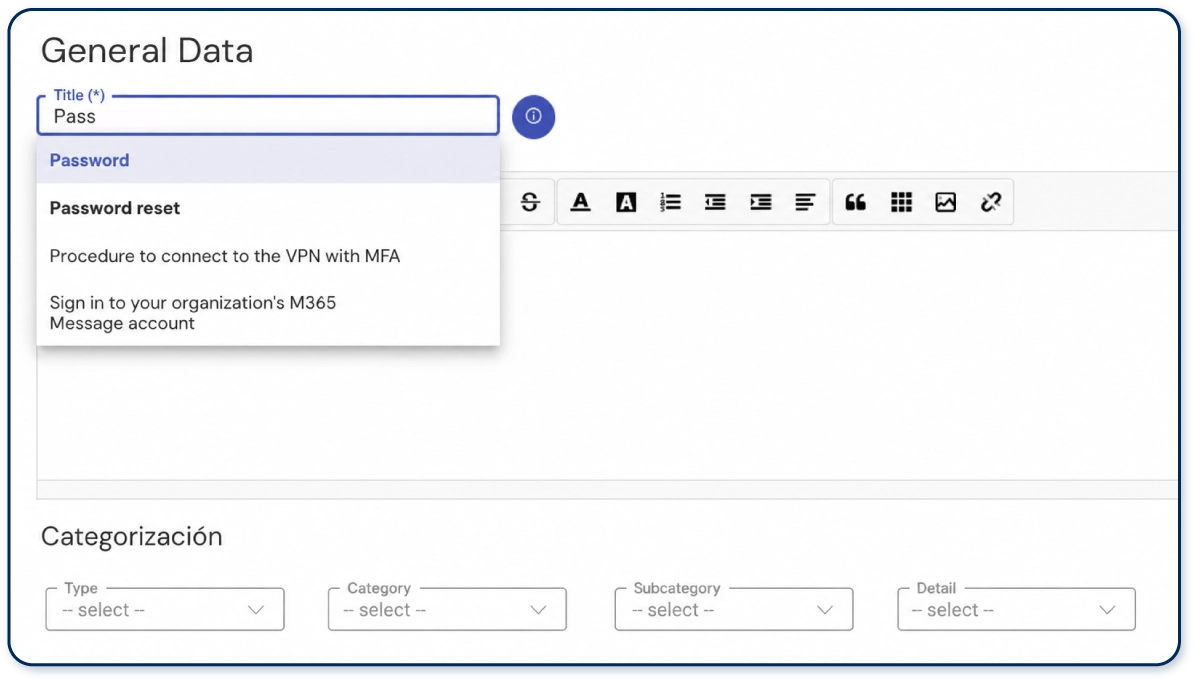
The process is simple and fast: when a user opens a ticket and fills in the “Title” field, a series of possible answers to that incident will appear.
The search results will be determined by the words the user includes in the title, which must be present in the knowledge base topic.
For this to work, the content of these frequently asked questions, or FAQs, must first be created in ServiceTonic’s knowledge base.
The following document will explain how to configure this feature and how users can take advantage of it.
Administrator: How to create content in the knowledge base
For users to access the content repository when creating a ticket, the knowledge must first be uploaded to the database and the “Suggest Solutions” option must be enabled in the user portal.
How to add knowledge to the database?
At this point, the system administrator must be clear about what documentation they want to add and how they want to structure it, as the effectiveness of the search will depend on that structure.
In Administration / System / Knowledge, the administrator must create the topic tree — that is, create articles or chapters called topics that will appear in search results.
Create library
From Library Management, you can add and manage the libraries of the knowledge base.
The available options are:
- Add Library: Adds a new library to the knowledge base, where topics will be added.
- Topic Management: This option manages the topic tree, displaying the solutions for each of the different libraries available in the application. It allows you to add, modify, or delete topics from the library.
- Delete: Allows you to delete the selected library.
Add topics
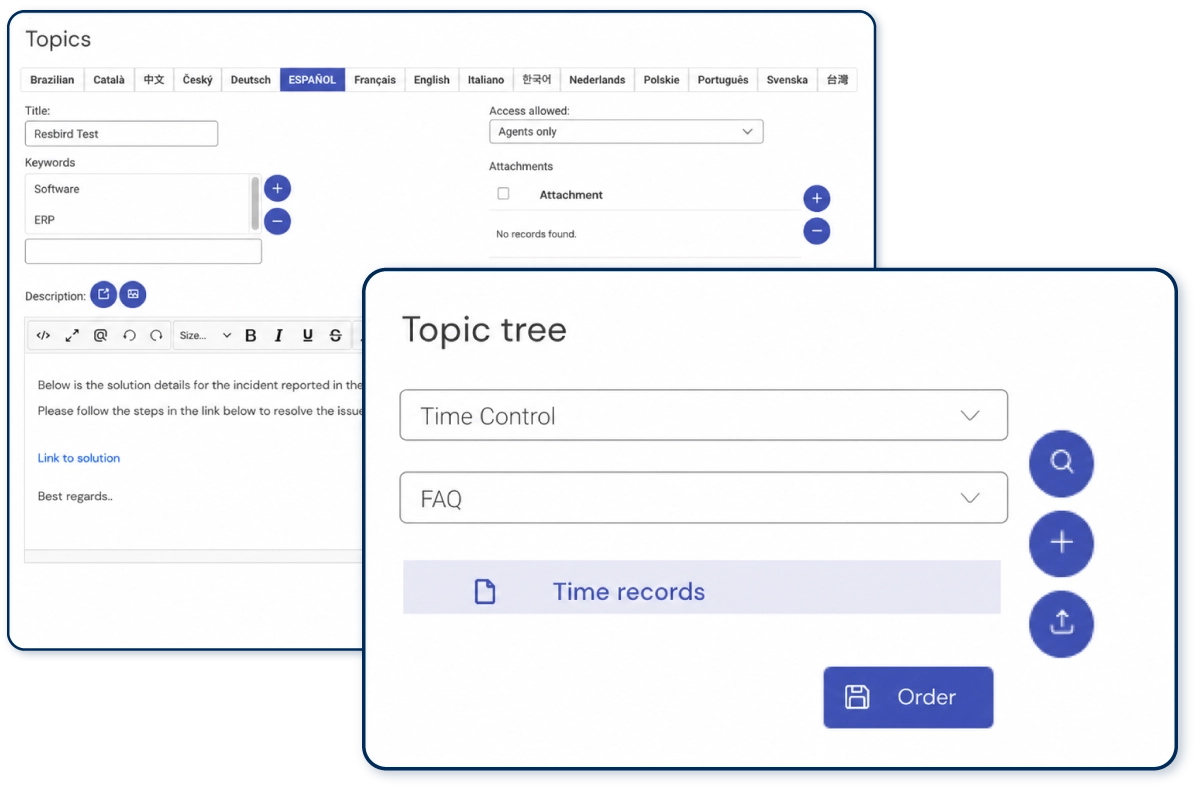
To create a topic, select “Topic Management” and from there, use the “+” icon to create the content.
For it to appear as a result for the user, the following fields must be filled in, preferably including words that might appear as the ticket title:
- Language selector: Defines the language in which the topic will be created.
- Title: Title of the topic.
- Keywords: Words that will help this topic appear in one search or another.
- Allowed access: Defines who has permission to access that topic.
- Attachments: For attaching any additional documents to that topic.
- Description: The content of the topic. This is where the article content goes, which may include text and images.
For users to access this content when creating a ticket, this option must be enabled.
User Portal Configuration
Finally, the “Suggest Solutions” checkbox must be enabled so that the topics previously created appear as answers to the questions or incidents submitted in tickets.
This option is enabled from Administration / Service / User Portal / Portal Configuration
Defining how search results will be displayed
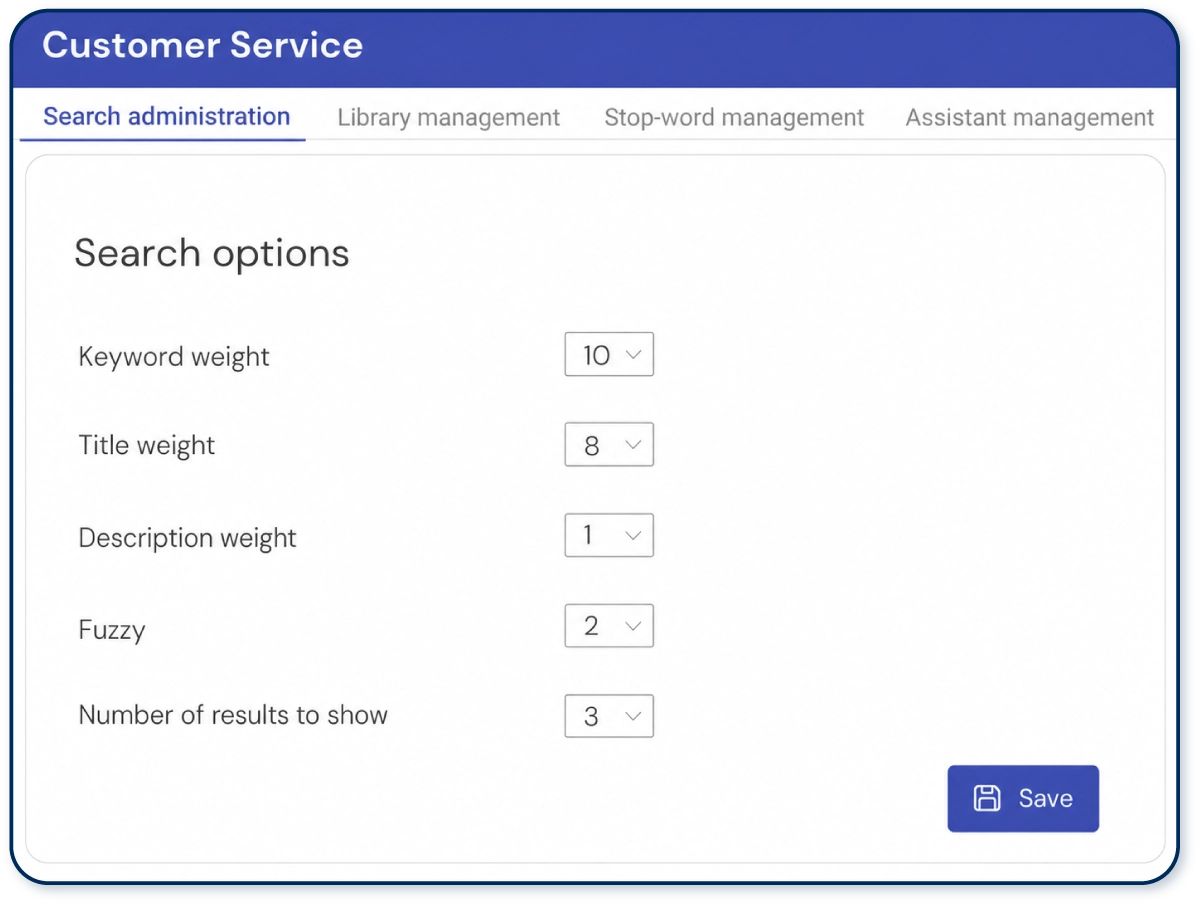
The only remaining step is to define which values, from those entered when creating a topic, will carry more weight or relevance when the user writes the ticket title, so that certain results are shown over others.
To do this, go to Administration / System / Knowledge and configure the parameters in Search Administration.
- Keywords weight: If you want the keywords created in the topics to determine the results when the user writes the ticket title, set this value to 10, the highest.
- Title weight: The title field can reinforce one result over another, so it is advisable to give it a somewhat high value, but not as high as 10, since the search weight mainly relies on keywords.
- Description weight: In this case, the topic content is analysed to offer certain results. It is advisable to keep this value low, so that both the title and keywords carry more weight.
- Fuzzy: Refers to how many letter errors in a ticket title word ServiceTonic will still recognise as the intended word. For example, if the user wants to type “Registration” but mistakenly types “Registrtion”, ServiceTonic will show all topics containing the word “Registration”. It is advisable to keep this value low.
- Number of suggestions to display: Refers to the number of topic titles that will appear to the user while they are writing the ticket title.
User: How to access topics
Once the content has been created and the “Suggest Solutions” option has been enabled, users will be able to access that content while creating a new ticket.
They simply need to write the ticket Title, and the topic suggestions will appear:
Once the topic that may provide the solution has been selected, the previously created content will appear.
If the content already resolves the user’s question, they can check the “My problem was solved” option and the ticket will not be created.
If the solution is not found in the topic, the user can continue with the normal ticket creation process.
More information available at: